

Radical - Technology & Business Blog | Lifestyle & Home Decor
No Result
View All Result
  • Home
  • TECHNOLOGY
    • Apps
    • Review
    • AI
  • BUSINESS
    • Cryptocurrency
    • Finance
    • Insurance
    • Law
    • Automobile
    • Real Estate
  • ENTERTAINMENT
    • Travel
    • Fashion
    • Game
  • LIFESTYLE
    • Home Improvement
    • Sports
    • Health
      • Fitness
      • Food
  • DIGITAL MARKETING
  • INTERNET
  • PET
  • MORE
    • CBD
    • Buying Guide
    • Biography
  • Home
  • TECHNOLOGY
    • Apps
    • Review
    • AI
  • BUSINESS
    • Cryptocurrency
    • Finance
    • Insurance
    • Law
    • Automobile
    • Real Estate
  • ENTERTAINMENT
    • Travel
    • Fashion
    • Game
  • LIFESTYLE
    • Home Improvement
    • Sports
    • Health
      • Fitness
      • Food
  • DIGITAL MARKETING
  • INTERNET
  • PET
  • MORE
    • CBD
    • Buying Guide
    • Biography
Radical - Technology & Business Blog | Lifestyle & Home Decor
No Result
View All Result
Home TECHNOLOGY

How to Restore Running Apps After Restart On Windows 10

Mark Taylor by Mark Taylor
October 12, 2021
in TECHNOLOGY
2 min read
0
How to Restore Running Apps After Restart On Windows 10

Let’s face it, Windows 10 is currently the most popular desktop OS. Millions of desktops and laptops now run the OS. Microsoft also constantly upgrades the operating system to repair bugs and security risks. Users of Windows 10 for some time may be aware that restarting the device terminates all programmes.

Before shutting down a computer, practically every major desktop operating system shuts a programme. You may have used applications like notepad, web browser, or other work-related tools while using Windows 10. When do you need to reboot your system?

The first thing that comes to mind is saving all programmes and restoring them after a restart. But what if I told you that Windows 10 can automatically restore all running apps? Yes, but you must enable a specific feature.

Steps to Restore Running Apps After a Windows 10 Restart

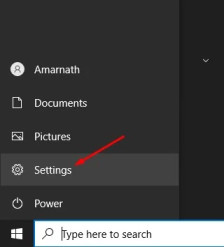
Step 1: To begin, pick ‘Settings’ from the Windows 10 Start menu.
restore apps

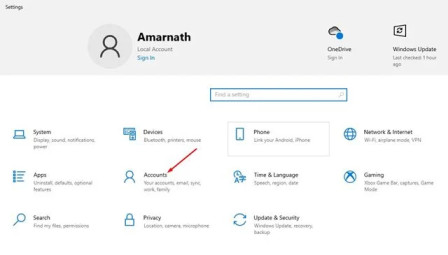
Step 2: Select the ‘Accounts‘ option from the Settings page.
restore apps

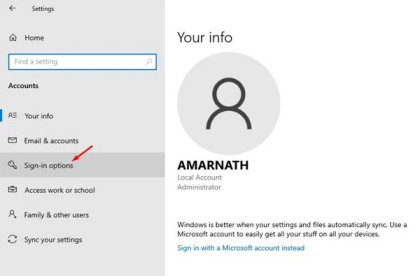
Step 3: Select ‘Sign-in choices’ from the Account page. On the left side, there is an option.
restore apps

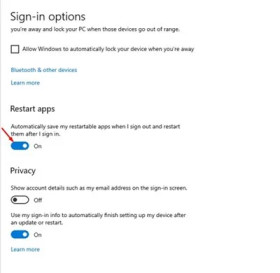
Step 4: Enable the option ‘Automatically save my restartable apps when I sign out and restart them after I sign in’ on the right pane.
restore apps

Important: If the developer has made the apps restartable, this solution will only work. Notepads, Microsoft Word documents, and other files that require the use of the ‘Save’ feature will not be restored.

That concludes the procedure. You’ve completed your mission. On Windows 10, you can use this method to automatically restore running apps after a reboot. So, in this post, we’ll look at how to restore running programmes on Windows 10 after a restart.

I hope you found this information useful. Please tell your friends about it as well. Please let us know if you have any questions or concerns in the comment section below.


Tags: How to Restore Running Apps After Restart On Windows 10Steps to Restore Running Apps After a Windows 10 RestartWindows 10
ShareTweetPinSendShare
Previous Post

Google TV Adds Users Personalized Profiles & Watchlists

Next Post

10 Best Telegram Bots That Everyone Should Know

Mark Taylor

Mark Taylor

I’m Mark Taylor, a tech-focused content writer with over five years of experience. I specialize in writing about digital trends, business innovation, and emerging technologies.

Related Posts

How to Automatically Delete YouTube Watch & Search History (Updated for 2026)
TECHNOLOGY

How to Automatically Delete YouTube Watch & Search History (Updated for 2026)

December 25, 2025
Excel Hacks
TECHNOLOGY

Excel Hacks That Make Cash Flow Forecasting Easier

December 18, 2025
Best Workflow Automation Tools
INTERNET

Best Workflow Automation Tools That Save 10+ Hours Weekly in 2026

December 18, 2025
joincrs.com
TECHNOLOGY

joincrs.com Guide: Classroomscreen for Teachers & Students

December 15, 2025
Blog ThriftyEventsNet
TECHNOLOGY

Blog ThriftyEventsNet: Ultimate 2026 Budget Event Guide

December 12, 2025
DualMedia Esports
SPORTS

DualMedia Esports: Hybrid Team & Media Model Explained

December 12, 2025
Next Post
Best-Telegram-Bots

10 Best Telegram Bots That Everyone Should Know

Leave a Reply Cancel reply

Your email address will not be published. Required fields are marked *

  • About Us
  • Contact Us
  • Editorial Guidelines
  • Meet Our Team
  • Privacy Policy

Radical © Copyright 2021, All Rights Reserved

No Result
View All Result
  • Home
  • TECHNOLOGY
    • Apps
    • Review
    • AI
  • BUSINESS
    • Cryptocurrency
    • Finance
    • Insurance
    • Law
    • Automobile
    • Real Estate
  • ENTERTAINMENT
    • Travel
    • Fashion
    • Game
  • LIFESTYLE
    • Home Improvement
    • Sports
    • Health
      • Fitness
      • Food
  • DIGITAL MARKETING
  • INTERNET
  • PET
  • MORE
    • CBD
    • Buying Guide
    • Biography

Radical © Copyright 2021, All Rights Reserved