

Radical - Technology & Business Blog | Lifestyle & Home Decor
No Result
View All Result
  • Home
  • TECHNOLOGY
    • Apps
    • Review
    • AI
  • BUSINESS
    • Cryptocurrency
    • Finance
    • Insurance
    • Law
    • Automobile
    • Real Estate
  • ENTERTAINMENT
    • Travel
    • Fashion
    • Game
  • LIFESTYLE
    • Home Improvement
    • Sports
    • Health
      • Fitness
      • Food
  • DIGITAL MARKETING
  • INTERNET
  • PET
  • MORE
    • CBD
    • Buying Guide
    • Biography
  • Home
  • TECHNOLOGY
    • Apps
    • Review
    • AI
  • BUSINESS
    • Cryptocurrency
    • Finance
    • Insurance
    • Law
    • Automobile
    • Real Estate
  • ENTERTAINMENT
    • Travel
    • Fashion
    • Game
  • LIFESTYLE
    • Home Improvement
    • Sports
    • Health
      • Fitness
      • Food
  • DIGITAL MARKETING
  • INTERNET
  • PET
  • MORE
    • CBD
    • Buying Guide
    • Biography
Radical - Technology & Business Blog | Lifestyle & Home Decor
No Result
View All Result
Home TECHNOLOGY

How to Hide & Show Specific Desktop Icons in Windows 10

Mark Taylor by Mark Taylor
September 28, 2021
in TECHNOLOGY
3 min read
0
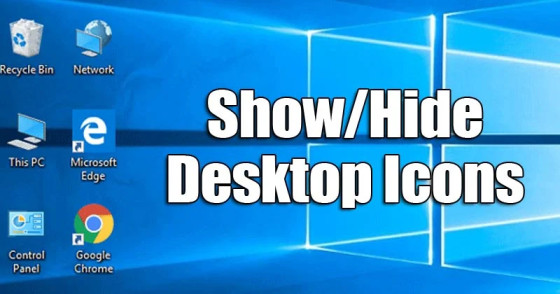
How to Hide & Show Specific Desktop Icons in Windows 10

If you’ve been using Windows 10 for a while, you’re surely aware that the operating system by default does not display desktop icons. Instead, you must manually enable the desktop icons in order for them to appear on the desktop.

Although it’s simple to display desktop icons, what if you want to hide a certain system icon? Microsoft’s Windows 10 offers a solution for this. You can quickly hide or expose icons on your desktop in Windows 10.

Steps to Hide & Show Specific Desktop Icons in Windows 10

As a result, this article will show you how to show or hide various system icons on your desktop, such as the Recycle Bin, Network, This PC, and so on. Not only that, but we’ll show you how to make software icons appear on your desktop.

Important: Before you begin, make sure Windows 10 is activated. If Windows 10 isn’t active, you won’t be able to adjust the desktop icon settings.

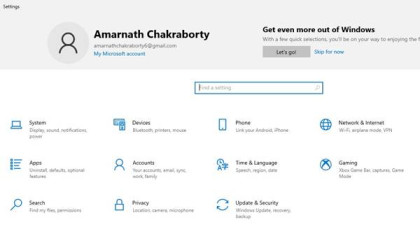
1. To begin, go to your system’s Settings app. To enter the Settings app, simply hit the Windows Key + I key combination.
Storage-Sense-1

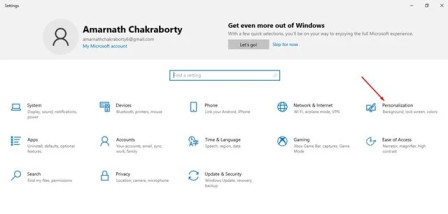
2. Select the ‘Personalization’ option in the Settings app.
storage sense 2

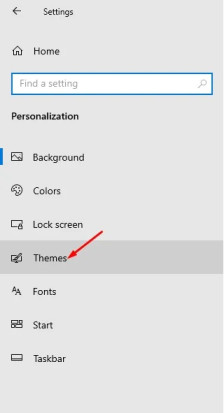
3. On the left pane, select the ‘Themes’ option.
storage sense 3

4. Select the ‘Desktop icon settings’ link in the right pane.
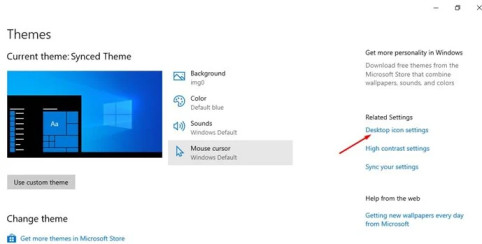
storage sense 4

5. Select the desktop icons in the Desktop Icon Settings pop-up and click the ‘Ok’ button. Uncheck the box and click the ‘Ok’ button if you want to hide a certain icon.
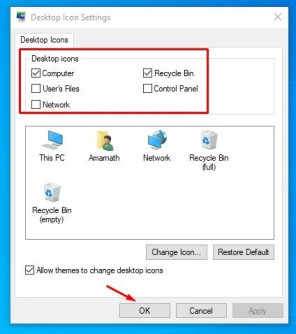
storage sense 5

That concludes our discussion. You’ve completed your task. In Windows 10, you can use this method to reveal or conceal individual desktop icons.

Steps to Show Program Icons in Windows 10

storage sense 6

You can display programme icons in the same way that you can show system icons.
Displaying programme icons on the desktop screen is rather simple. You must use the Windows 10 Search to find the programme and then drag and drop it to the desktop screen.

This will create a shortcut for the programme on your desktop. So, this article will show you how to display certain desktop icons in Windows 10. I hope you found this material useful! Please pass it on to your friends as well. If you have any questions, please leave them in the comments section below.


You can display programme icons in the same way that you can show system icons.
Displaying programme icons on the desktop screen is rather simple.

You must use the Windows 10 Search to find the programme and then drag and drop it to the desktop screen. This will create a shortcut for the programme on your desktop.

So, this article will show you how to display certain desktop icons in Windows 10. I hope you found this material useful! Please pass it on to your friends as well. If you have any questions, please leave them in the comments section below.

Tags: How to Hide & Show Specific Desktop Icons in Windows 10Steps to Hide & Show Specific Desktop Icons in Windows 10Steps to Show Program Icons in Windows 10
ShareTweetPinSendShare
Previous Post

5 Best Photo Viewer Apps for Windows 11

Next Post

Millions of Android Devices Blocks Apps like Google Maps, YouTube, Gmail etc

Mark Taylor

Mark Taylor

I’m Mark Taylor, a tech-focused content writer with over five years of experience. I specialize in writing about digital trends, business innovation, and emerging technologies.

Related Posts

How to Monetize YouTube Videos in the USA (2026 Guide)
TECHNOLOGY

How to Monetize YouTube Videos in the USA (2026 Guide)

February 10, 2026
pohzoxpu4.5.3.9z
TECHNOLOGY

pohzoxpu4.5.3.9z: The Complete Digital Identifier Guide

January 26, 2026
Cybersecurity
TECHNOLOGY

Cybersecurity in 2026: 7 Essential Tips to Stay Safe in the USA

January 26, 2026
Ways Automation & Robotics Are Rewriting US Work Life
TECHNOLOGY

5 Ways Automation & Robotics Are Rewriting US Work Life in 2026 | Jobs & Productivity

January 26, 2026
Top Emerging Tech Trends
TECHNOLOGY

Top Emerging Tech Trends in 2026

January 25, 2026
Best Proposal Software for Freelancers & Agencies
TECHNOLOGY

Best Proposal Software for Freelancers & Agencies (2026 Buyer’s Guide)

January 19, 2026
Next Post
Millions-of-Android-phones-blocks-these-apps

Millions of Android Devices Blocks Apps like Google Maps, YouTube, Gmail etc

  • About Us
  • Contact Us
  • Editorial Guidelines
  • Meet Our Team
  • Privacy Policy
  • Write For Us Forex

Radical © Copyright 2021, All Rights Reserved

No Result
View All Result
  • Home
  • TECHNOLOGY
    • Apps
    • Review
    • AI
  • BUSINESS
    • Cryptocurrency
    • Finance
    • Insurance
    • Law
    • Automobile
    • Real Estate
  • ENTERTAINMENT
    • Travel
    • Fashion
    • Game
  • LIFESTYLE
    • Home Improvement
    • Sports
    • Health
      • Fitness
      • Food
  • DIGITAL MARKETING
  • INTERNET
  • PET
  • MORE
    • CBD
    • Buying Guide
    • Biography

Radical © Copyright 2021, All Rights Reserved