

Radical - Technology & Business Blog | Lifestyle & Home Decor
No Result
View All Result
  • Home
  • Technology
  • AI
  • Apps & Software
  • BUSINESS
    • Cryptocurrency
    • Finance
    • Insurance
    • Law
    • Automobile
    • Real Estate
  • Internet & Digital
  • Reviews
  • About
  • Home
  • Technology
  • AI
  • Apps & Software
  • BUSINESS
    • Cryptocurrency
    • Finance
    • Insurance
    • Law
    • Automobile
    • Real Estate
  • Internet & Digital
  • Reviews
  • About
Radical - Technology & Business Blog | Lifestyle & Home Decor
No Result
View All Result
Home Internet & Digital

How to Download YouTube Videos On PC (Latest Method)

Mark Taylor by Mark Taylor
July 28, 2025
in Internet & Digital
2 min read
0
Download YouTube Videos

You may be aware that the YouTube mobile app includes a video download feature. You can save YouTube videos to your computer and watch them later. The famous YouTube app feature appears to have made its way to the website’s desktop edition.

The feature is still being tested, but it is currently available to YouTube Premium subscribers. It’s also only available for a short period. If the download button is well-received on the desktop version, it may be expanded into a full-fledged feature.

According to Android Police, the feature is now only available in two countries: France and India. According to one source from The Verge, the experimental functionality is also available in the United States, but not on every Premium account.

In addition, YouTube issued a statement stating that the feature is only available on Chrome, Edge, and Opera browsers. To find the new feature, you’ll need to utilise one of these three web browsers.

Steps to Download YouTube Videos On PC

So, if you’re interested in trying out YouTube Premium’s new download feature, follow the simple steps outlined below. So, let’s get this party started.

Step 1: First, log in to your YouTube Premium account using your preferred web browser.

Step 2: In your URL bar, type in ‘YouTube.com/new’ and press Enter.
This will take you to YouTube Lab’s home page.

Step 3: Scroll down to the ‘Download Videos from Your Browser‘ section on the YouTube Lab website. Then, select the ‘Try it Out’ option.
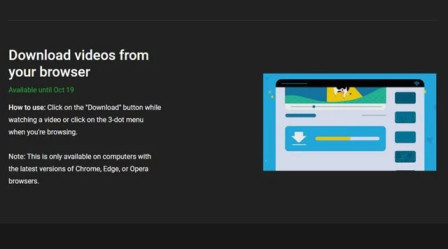
step 3

Step 4: To download videos, select the ‘Download‘ option from the three dots adjacent to the video thumbnail. Alternatively, open the video and look for the download icon next to it.
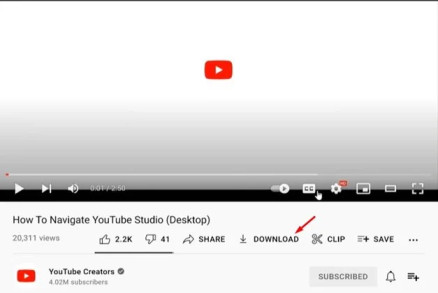
step 4

Step 5: A pop-up notification reflecting the download progress will appear.

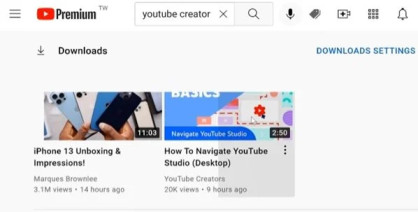
Step 6: Go to YouTube.com/feed/downloads to access your downloaded videos.
Alternatively, you can select the ‘Downloads‘ option by clicking on the three horizontal lines.
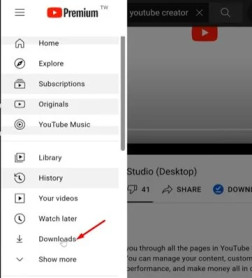
Downloads option

That concludes our discussion. You’ve completed your task. This is how you can try out YouTube Premium’s new download video feature. So, this tutorial will show you how to save YouTube videos on your computer or laptop.
creator

I hope you found this material useful! Please pass it on to your friends as well. If you have any questions, please leave them in the comments section below.

Tags: How to Download YouTube Videos On PC
ShareTweetPinSendShare
Previous Post

How to Use iOS 17 FaceTime Gestures: A Visual Guide

Next Post

How To Show the CPU Frequency In Android Status Bar

Mark Taylor

Mark Taylor

I’m Mark Taylor, a tech-focused content writer with over five years of experience. I specialize in writing about digital trends, business innovation, and emerging technologies.

Related Posts

Best Accounting SaaS Tools
Internet & Digital

Best Accounting SaaS Tools for Small Firms in 2026 (Expert Analysis & Comparisons)

July 25, 2026
Best Employee Roster Apps
Internet & Digital

Top 10 Best Employee Roster Apps (Updated for 2026)

July 25, 2026
Best Home Improvement Loans
Internet & Digital

Best Home Improvement Loans in 2026 — Expert Reviewed & Compared

July 25, 2026
Best VPNs for Snapchat
Internet & Digital

Best VPNs for Snapchat — Updated Guide & What’s Changed

July 25, 2026
Free Local AI Background Remover for Windows and Mac: Creative Fabrica Studio Desktop Review
Internet & Digital

Free Local AI Background Remover for Windows and Mac: Creative Fabrica Studio Desktop Review

July 18, 2026
how to Spot Phishing Email
Internet & Digital

7 Methods to Spot a Phishing Email

July 18, 2026
Next Post
CPU Frequency In Android Status Bar

How To Show the CPU Frequency In Android Status Bar

  • About Us
  • Contact Us
  • Editorial Guidelines
  • Meet Our Team
  • Privacy Policy

Radical © Copyright 2021, All Rights Reserved

No Result
View All Result
  • Home
  • Technology
  • AI
  • Apps & Software
  • BUSINESS
    • Cryptocurrency
    • Finance
    • Insurance
    • Law
    • Automobile
    • Real Estate
  • Internet & Digital
  • Reviews
  • About

Radical © Copyright 2021, All Rights Reserved