
The fastest way to spot a phishing email is to check three things before you do anything else: the sender’s actual email address (not just the display name), where any link really goes when you hover over it, and whether the message is pressuring you to act immediately. Phishing emails almost always combine at least two of these red flags.
Email remained the top method scammers used to contact people, according to Federal Trade Commission data. That’s not because phishing got harder to spot, it’s because AI has made phishing emails better written and more convincing than ever, which means the old advice to “look for bad grammar” isn’t reliable anymore on its own.
Below are 7 specific methods to catch a phishing email before it catches you, including a few that most guides skip entirely. None of them require special software, just knowing exactly where to look.
1. Check the Sender’s Actual Email Address, Not Just the Display Name
Most email apps show a friendly display name, like “Bank of America Security,” front and center, while the real email address hides behind it. Scammers count on you never checking what’s actually behind that name.
Tap or click directly on the sender’s name to reveal the full email address underneath. If a message claims to be from a major company but the address ends in a random string of letters, a public domain like @gmail.com, or a domain that’s almost right but not quite, that’s your first solid red flag.
- Tap the sender name on mobile, or hover over it on desktop, to reveal the full address
- Compare it against a previous, verified email from that same company if you have one
- Watch for domains that are one letter off from the real thing (a swapped letter, an extra dash, a different ending)
- A legitimate company’s official domain will match exactly, every time, no exceptions
2. Hover Before You Click — Inspect Every Link
Phishing emails live or die by getting you to click a link, so this is the single highest-value habit you can build. On desktop, hovering your mouse over any link (without clicking) shows you the real destination URL in a small preview at the bottom of your screen.
On mobile, you can achieve the same thing with a long press instead of a tap, which brings up a preview of where the link actually goes before you commit to opening it. If the destination doesn’t match what the link text claims, or looks unfamiliar and unrelated to the sender, don’t click it.
- Desktop: hover your mouse over the link and check the URL preview at the bottom of the browser or email client
- Mobile: press and hold the link instead of tapping to preview its real destination
- Watch specifically for extra words added to a familiar domain, or the real domain buried deep inside a longer, unfamiliar one
- When in doubt, don’t click at all, type the company’s known website address directly into your browser instead
3. Watch for Urgency and Fear Tactics
Phishing emails are built on a simple psychological trick: get you to act before you have time to think it through. Subject lines like “Immediate Action Required” or “Your Account Will Be Closed in 24 Hours” exist specifically to short-circuit your normal caution.
Legitimate companies rarely, if ever, demand an instant response over email. When you feel that jolt of urgency while reading a message, treat it as a signal to slow down, not speed up.
- Be suspicious of any message threatening account closure, legal action, or financial loss unless you act “immediately”
- Countdown language (“only 3 hours left,” “final notice”) is a classic manipulation tactic, not a real deadline
- Real companies generally give you reasonable time and multiple ways to resolve an actual account issue
- If a message makes you feel panicked, that feeling itself is a reason to pause, not a reason to click faster
4. Don’t Rely on Grammar and Spelling as Your Only Clue Anymore
This used to be the easiest way to catch a phishing email, and older guides still lean on it heavily. That advice is now outdated on its own, because generative AI tools let scammers write flawless, professional-sounding emails with zero effort.
Cybersecurity researchers have specifically flagged that AI is closing the grammar gap that used to make phishing easy to spot at a glance. That doesn’t mean grammar mistakes are meaningless a sloppy email is still worth extra scrutiny, it just means a well-written email is no longer proof that a message is legitimate.
- Poor grammar and awkward phrasing are still worth noticing, but treat their absence as meaningless, not reassuring
- AI-generated phishing can now mimic a specific company’s tone and formatting convincingly
- Focus more weight on the sender address, links, and requested action than on writing quality alone
- If anything, a suspiciously polished, personalized email from an unexpected sender deserves more scrutiny, not less
5. Be Suspicious of Unexpected Attachments and Personal Info Requests
Two of the most reliable phishing signals are also two of the most straightforward to check: was this attachment expected, and is this request for information something a real company would actually ask for over email? Legitimate organizations essentially never ask you to confirm a password, Social Security number, or full account number by email.
Attachments deserve the same skepticism, especially file types like .zip, .exe, or unexpected PDFs claiming to be invoices, shipping notices, or tax documents. If you weren’t expecting a file from that sender, don’t open it, even if the surrounding email looks convincing.
- Legitimate companies don’t ask you to “confirm” a password or full account number through email
- Be especially cautious of unsolicited invoices, shipping notices, or tax-related attachments
- Unfamiliar file extensions (.zip, .exe, .scr) are especially high-risk, even from senders who appear familiar
- When information is genuinely needed, verify through the company’s official app or website, never through the email itself
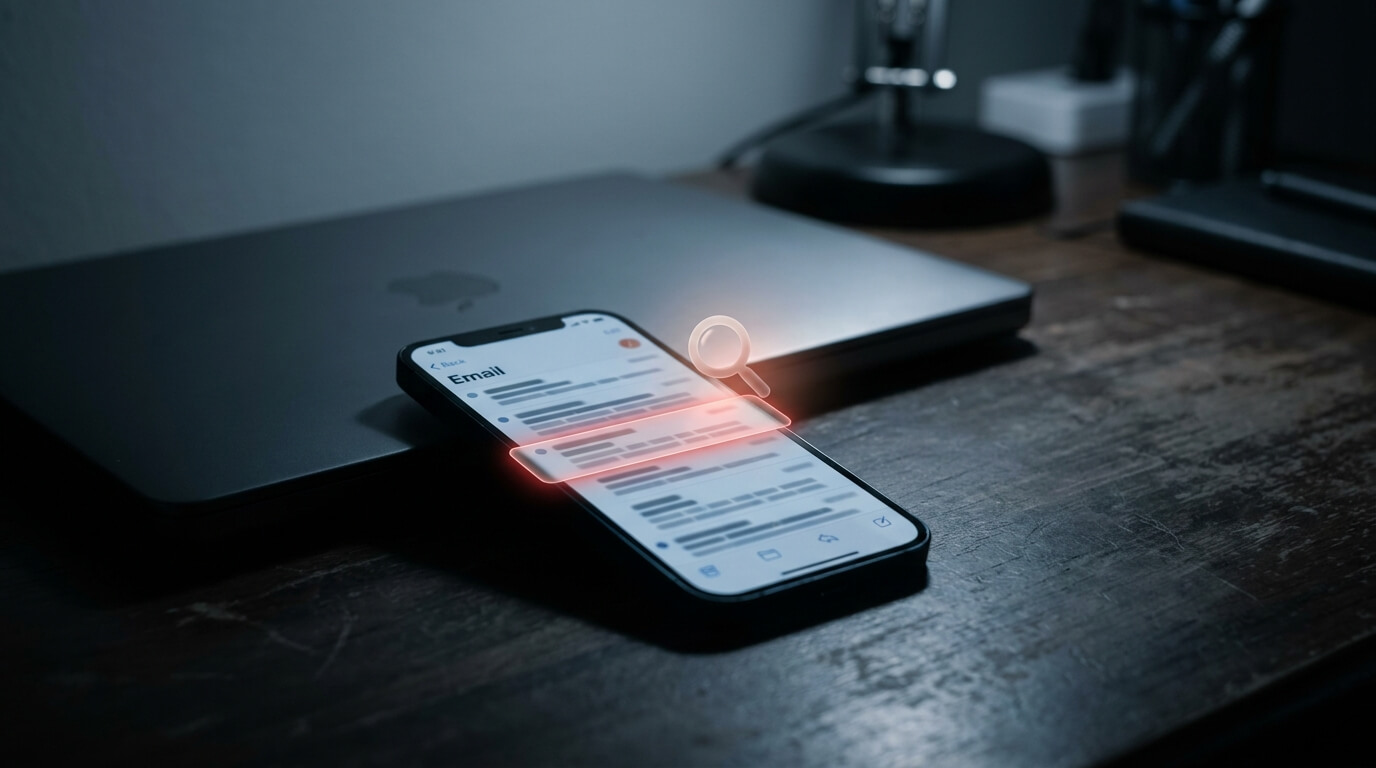
6. Look Closer on Mobile — Phones Hide the Clues Desktop Catches
This is the method most guides skip entirely, and it matters more every year as more people check email primarily on their phones. Mobile email apps frequently hide the full sender address by default and truncate long URLs, which strips away exactly the details you need to catch a phishing attempt.
That means the same email that might look obviously suspicious on a desktop screen can sail right past your guard on a phone, simply because the warning signs are harder to see. If something about a mobile email feels even slightly off, it’s worth switching to a desktop browser, or opening the company’s official app directly, before taking any action.
- Mobile apps often show only a display name by default, always tap to reveal the full address
- Long, truncated URLs on mobile hide exactly the details (extra subdomains, misspellings) you’d catch on desktop
- If a message feels suspicious on your phone, move to a desktop browser for a closer look before acting
- Never enter sensitive information through a link opened directly from a mobile email app
7. Verify Independently Before You Ever Act
This is the method that catches everything the other six might miss, because it doesn’t rely on spotting a specific red flag at all. Instead of evaluating the email itself, you sidestep it entirely by contacting the company through a channel you already know is real.
If an email claims your bank account has an issue, don’t call the number in the email or click its link. Open your bank’s app, or call the number printed on the back of your card, and ask directly. This single habit neutralizes even the most convincing phishing attempt, because scammers can fake an email, but they can’t fake your existing, trusted line of contact with a real company.
- Use a phone number or website you already know is legitimate, never one provided in the suspicious email itself
- Bookmark your frequently used sites (bank, email provider, workplace tools) so you’re never navigating there through a link
- If a friend or coworker’s email seems off, verify through a text message or phone call instead of replying
- This one habit is the most reliable fallback when you’re genuinely unsure about any of the other six signals
Real-World Examples
Here’s how these methods actually play out in situations people run into regularly.
Someone receives an email claiming to be from their bank warning of suspicious account activity; instead of clicking the link, they open their banking app directly and confirm there’s no actual issue. A remote worker gets an urgent-sounding email from their “IT department” asking them to reset their password immediately through a provided link; a long press on the link on their phone reveals a domain that doesn’t match their company at all. A small business owner receives a professional, perfectly written invoice email from an unfamiliar vendor; despite the flawless grammar, they notice the sender’s domain is one letter off from a real supplier and delete the message before opening the attached file.
- Banking alerts: verify through the official app, never the email link itself
- Workplace IT requests: a quick link preview on mobile catches a spoofed domain instantly
- Vendor invoices: well-written text doesn’t rule out a scam, the sender address still tells the real story
- Unexpected prize or refund emails: treated as a scam by default, verified independently if genuinely uncertain
Frequently Asked Questions
What is the easiest way to spot a phishing email? Check the sender’s actual email address by tapping or hovering over the display name, and hover or long-press any link before clicking to see where it really goes. These two checks alone catch the majority of phishing attempts.
Can a phishing email have perfect grammar? Yes, and increasingly so. AI tools now let scammers write flawless, professional emails, which means good grammar is no longer proof that a message is legitimate — you need to check the sender and links regardless.
Why do phishing emails create a sense of urgency? Urgency and fear are deliberate psychological tactics designed to make you act before you have time to think critically or verify the request. Legitimate companies rarely demand an instant response over email.
Is it safe to open a phishing email, just not click anything inside it? Generally, yes — simply opening or previewing an email does not usually compromise your device on its own. The real risk comes from clicking links, opening attachments, or replying with personal information.
What should I do if I already clicked a phishing link? Don’t enter any information if a login page appears. Update your device’s security software, run a scan, and change the password for the affected account immediately, ideally from a device you know is clean.
Why are phishing emails harder to spot on my phone? Mobile email apps often hide the full sender address by default and truncate long URLs, removing exactly the details that would tip you off on a desktop screen. Switching to desktop for a closer look is a smart habit for suspicious messages.
Should I report phishing emails, or just delete them? Reporting is generally better than simply deleting. Forwarding phishing emails to the impersonated company (many, including Amazon, Microsoft, and PayPal, have dedicated report addresses) and to the Anti-Phishing Working Group helps block similar scams for others.
How can I verify if an email claiming to be from my bank is real? Never use the phone number or link provided in the suspicious email. Instead, open your bank’s official app, or call the number printed on the back of your card, and ask directly.
The Bottom Line
Phishing emails have gotten harder to catch at a glance, mostly because AI has erased the sloppy grammar that used to give scammers away instantly. That makes the fundamentals, checking the real sender address, previewing every link, and staying alert to manufactured urgency, more important than ever, not less.
Build these seven checks into a habit, especially the mobile-specific one most people never think about, and independent verification as your fallback for anything you’re still unsure about. None of it requires special tools or technical skill, just a few extra seconds before you click.