

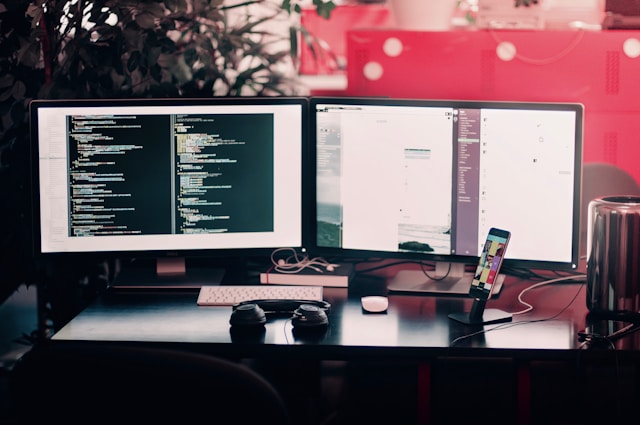
A dual monitor setup is one of the most effective ways to enhance productivity, whether you’re working from home, gaming, or managing multiple tasks at once. By extending your display across two screens, you can streamline workflows, reduce window switching, and improve multitasking efficiency. Setting up dual monitors may seem complex, but with the right guidance, it’s a straightforward process. In this article, we’ll walk you through how to set up a dual monitor display and maximize its benefits.
Benefits of a Dual Monitor Setup
- Improved Multitasking – Work on multiple applications simultaneously without minimizing windows.
- Enhanced Workflow – Designers, programmers, and stock traders benefit from additional screen space.
- Better Organization – Keep documents, emails, and research materials open side by side.
- Increased Efficiency – Great for video editing, coding, and data analysis, making tasks more streamlined.
Choosing the Right Equipment
Before setting up your dual monitor display, ensure you have the right components:
- Monitors: Choose screens with similar resolution and refresh rates for a seamless experience.
- Cables & Adapters: HDMI, DisplayPort, USB-C, or VGA, depending on your monitor and computer compatibility.
- Monitor Stands or Mounts: Ensure proper ergonomic placement to reduce neck strain and enhance comfort.
Setup Guide
For Windows Users:
- Connect the Second Monitor – Plug in the second display using the appropriate cable.
- Adjust Display Settings:
- Right-click on the desktop and select Display settings.
- Under Multiple displays, choose Extend these displays for an extended workspace.
- Set the resolution and orientation to match your preference.
- Organize Your Workflow – Drag and drop applications between screens and set a primary display.
For Mac Users:
- Connect the Second Display – Use a compatible adapter if necessary.
- Configure Display Preferences:
- Go to System Preferences > Displays.
- Arrange monitors and choose Extended Display Mode.
- Optimize Mission Control – Utilize Spaces and Mission Control for better multitasking.
Tips for an Efficient Dual Monitor Workflow
- Position Monitors Ergonomically – Keep screens at eye level to prevent strain.
- Use Software Tools – Programs like DisplayFusion and PowerToys help manage multiple screens effectively.
- Create Keyboard Shortcuts – Improve navigation speed with custom shortcuts for moving windows.
Common Issues & Troubleshooting
- Second Monitor Not Detected – Check cable connections, restart your PC, or update graphics drivers.
- Resolution and Scaling Issues – Adjust settings to match both displays.
- Flickering or Lagging Screens – Try different ports or cables to resolve the issue.
Conclusion
Setting up a dual monitor display can significantly boost productivity, whether for work or entertainment. With the right configuration, you can enjoy an efficient, seamless workflow that helps you get more done. If you haven’t tried using dual monitors yet, now is the time to upgrade your setup and experience the benefits firsthand.