

Radical - Technology & Business Blog | Lifestyle & Home Decor
No Result
View All Result
  • Home
  • TECHNOLOGY
    • Apps
    • Review
    • AI
  • BUSINESS
    • Cryptocurrency
    • Finance
    • Insurance
    • Law
    • Automobile
    • Real Estate
  • ENTERTAINMENT
    • Travel
    • Fashion
    • Game
  • LIFESTYLE
    • Home Improvement
    • Sports
    • Health
      • Fitness
      • Food
  • DIGITAL MARKETING
  • INTERNET
  • PET
  • MORE
    • CBD
    • Buying Guide
    • Biography
  • Home
  • TECHNOLOGY
    • Apps
    • Review
    • AI
  • BUSINESS
    • Cryptocurrency
    • Finance
    • Insurance
    • Law
    • Automobile
    • Real Estate
  • ENTERTAINMENT
    • Travel
    • Fashion
    • Game
  • LIFESTYLE
    • Home Improvement
    • Sports
    • Health
      • Fitness
      • Food
  • DIGITAL MARKETING
  • INTERNET
  • PET
  • MORE
    • CBD
    • Buying Guide
    • Biography
Radical - Technology & Business Blog | Lifestyle & Home Decor
No Result
View All Result
Home TECHNOLOGY

How to Connect AirPods to Your MacBook: Step-by-Step Guide

Amelia John by Amelia John
March 28, 2024
in TECHNOLOGY
3 min read
0
How to Connect AirPods to Your MacBook: Step-by-Step Guide

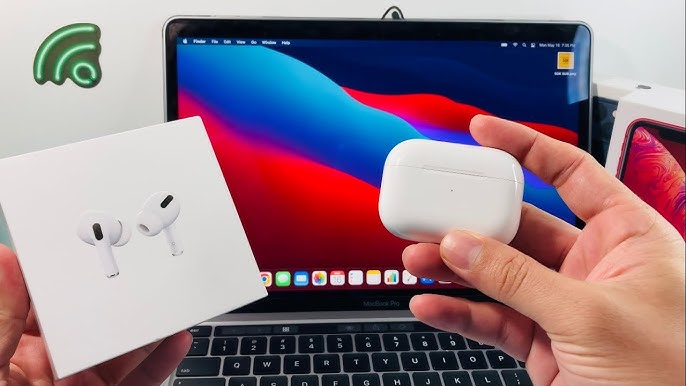
How to Connect AirPods to Your MacBook: Step-by-Step Guideatial Audio, and you can also connect your computer to an iPhone or iPad from more than one place. There are also Apple’s easy-to-use dashboard settings, which you can check out right on your desktop. But you’ll need to connect your Apple earbuds to your computer before you can use any of these features.

The good news is that this is one of the easiest things to do with ecosystem products. Also, it would help if you didn’t get lost, so we put together this step-by-step guide on how to connect your Apple audio to your Apple computer.

For AirPods that are already connected to an iPhone

Once AirPods are paired with an iPhone, they are easy to use on a Mac. Remember to use the same Apple ID to sign in to iCloud on both the iPhone and the Mac. But this might not work if more than one person uses your iPhone or if you need a different account for your Mac at work.

Step 1: Turn on the AirPods and put them in your ears.

Step 2: On your Mac, click the Control Centre icon in the Menu Bar. On Big Sur or later, it’s next to the Spotlight Search icon, and on Catalina, it’s next to the Wi-Fi icon.

Step 3: Choose an AirPods from the drop-down options. Most of the time, they look like [Your Name]’s AirPods. When the AirPods link, a bell sounds.
How to Create a Folder in Google Docs: Step-by-Step Guide

It doesn’t need any other setting! But move on to the next part if the AirPods don’t show up in the Control Centre menu.

For brand-new Apple AirPods on Mac OS X

The first time you connect your AirPods to your Mac, it takes a little longer to set up because there are more steps. Even so, the steps are simple and impossible to mess up.

Step 1: Click either the Gear button in the Dock or the Apple logo in the upper left corner of the screen. Then, click System Preferences.

Step 2: To do this, click Bluetooth and make sure it’s on.

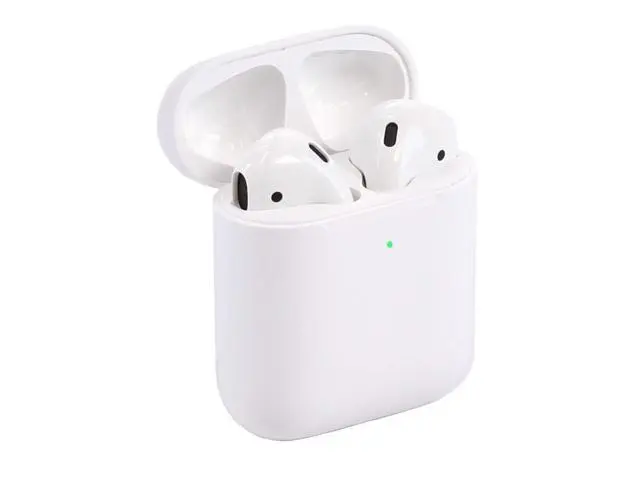
Step 3: Put the AirPods in the charging case. As shown below, make sure the door stays open.

Step 4: Look for the Setup button on the back of the AirPod case. If you press and hold this button, the state LED will flash white. The AirPods are now ready to connect.

Step 5: Find the Bluetooth menu on the Mac. The AirPods can be found under “Devices” and “Nearby Devices.” Press the “Connect” button.

Tags: How to Connect AirPods to Your MacBook: Step-by-Step Guide
ShareTweetPinSendShare
Previous Post

How to Create a Folder in Google Docs: Step-by-Step Guide

Next Post

How to Convert Apple Numbers to Excel: Step-by-Step Guide

Amelia John

Amelia John

Hi, I’m Amelia John — a Canadian writer with a background in English and Professional Writing. For the past four years, I’ve helped brands craft content that connects, from blog posts to web copy.

Related Posts

Fapelli 2026: The Future of Next-Generation Digital Systems Explained
TECHNOLOGY

Fapelli 2026: The Future of Next-Generation Digital Systems Explained

April 7, 2026
iMessage Not Working? Complete Troubleshooting Guide to Fix iMessage Issues in 2026
TECHNOLOGY

iMessage Not Working? Complete Troubleshooting Guide to Fix iMessage Issues in 2026

April 6, 2026
QuikConsole.com: Web-Based Terminal for Developers & Sysadmins 2026 | Cloud Console Tool
TECHNOLOGY

QuikConsole.com: Web-Based Terminal for Developers & Sysadmins 2026 | Cloud Console Tool

April 6, 2026
AutoLinkRush.com: Automated Link Building Solution for SEO Growth 2026 | AI Backlink Tool
TECHNOLOGY

AutoLinkRush.com: Automated Link Building Solution for SEO Growth 2026 | AI Backlink Tool

April 6, 2026
TheZeusNetwork.com/Activate: Complete Device Activation Guide (2026)
TECHNOLOGY

TheZeusNetwork.com/Activate: Complete Device Activation Guide (2026)

April 5, 2026
Catturd Twitter: The Rise of a Political Satire Phenomenon | Complete Guide 2026
TECHNOLOGY

Catturd Twitter: The Rise of a Political Satire Phenomenon | Complete Guide 2026

April 5, 2026
Next Post
How to Convert Apple Numbers to Excel: Step-by-Step Guide

How to Convert Apple Numbers to Excel: Step-by-Step Guide

  • About Us
  • Contact Us
  • Editorial Guidelines
  • Meet Our Team
  • Privacy Policy
  • Write For Us Forex

Radical © Copyright 2021, All Rights Reserved

No Result
View All Result
  • Home
  • TECHNOLOGY
    • Apps
    • Review
    • AI
  • BUSINESS
    • Cryptocurrency
    • Finance
    • Insurance
    • Law
    • Automobile
    • Real Estate
  • ENTERTAINMENT
    • Travel
    • Fashion
    • Game
  • LIFESTYLE
    • Home Improvement
    • Sports
    • Health
      • Fitness
      • Food
  • DIGITAL MARKETING
  • INTERNET
  • PET
  • MORE
    • CBD
    • Buying Guide
    • Biography

Radical © Copyright 2021, All Rights Reserved