

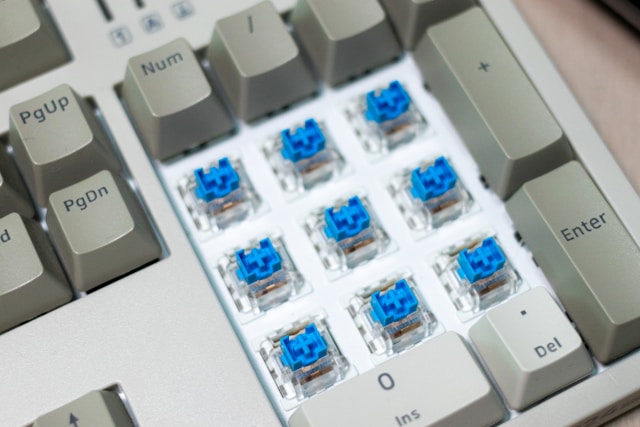
Mechanical keyboards are known for their durability, responsiveness, and satisfying tactile feedback. But even the most reliable keyboard can run into issues over time. If you’re dealing with a mechanical keyboard key not working, double typing, or sticking, you don’t always need to replace the entire keyboard. With the right approach, you can fix faulty mechanical keyboard key problems at home and restore your device to full performance.
In this guide, we’ll walk through common issues, quick fixes, advanced repairs, and preventive measures to keep your keyboard in top shape.
Identify the Problem
Before jumping into repairs, it’s important to figure out what’s wrong. Mechanical keyboard issues typically fall into these categories:
-
Unresponsive Key – The switch isn’t registering input.
-
Sticky Key – Dirt, dust, or liquid is causing resistance.
-
Double Typing – The switch registers multiple inputs with one press.
-
Physical Damage – A broken switch or PCB problem.
To diagnose:
-
Use an online keyboard tester to check if the key is detected.
-
Swap the keycap with another to see if the issue persists.
-
Gently press the switch without the cap to test responsiveness.
Basic Fixes
For minor issues, try these quick solutions:
-
Remove Debris and Dust
-
Take off the keycap with a keycap puller.
-
Use compressed air to blow out dirt.
-
Wipe with a cotton swab dipped in isopropyl alcohol.
-
-
Fix Sticky Keys
-
Clean around and under the keycap.
-
If liquid was spilled, carefully clean the affected area and let it dry completely.
-
-
Reseat the Keycap
-
Sometimes a loose or misaligned keycap can make a mechanical keyboard key not working properly.
-
Simply press it back into place or replace it with a new one if damaged.
-
Intermediate Fixes
If cleaning doesn’t solve the problem, move on to deeper repairs:
-
Check Stabilizers
-
Larger keys like spacebar or shift use stabilizers.
-
If they rattle or feel unsteady, remove them, clean, and lubricate lightly.
-
-
Switch Testing
-
If one specific switch fails repeatedly, it may be faulty.
-
Use a switch tester if available, or replace the switch entirely.
-
Advanced Fixes
When a mechanical keyboard key not working is caused by hardware failure, you’ll need more advanced steps:
-
Replace the Switch
-
Desolder the faulty switch from the PCB using a soldering kit.
-
Install a new switch of the same type (Cherry MX, Gateron, Kailh, etc.).
-
Resolder carefully to avoid damaging the circuit.
-
-
PCB Issues
-
If the entire row or section doesn’t work, the printed circuit board may be damaged.
-
This usually requires professional repair or complete replacement.
-
Preventive Maintenance
Once you repair mechanical keyboard switches, regular care will help avoid future issues.
-
Clean Monthly: Use compressed air and a microfiber cloth.
-
Avoid Spills: Keep drinks away from the keyboard.
-
Use a Cover: A dust cover helps protect unused keyboards.
-
Proper Storage: Store in a cool, dry place when not in use.
Conclusion
A faulty mechanical keyboard key doesn’t have to mean buying a new keyboard. By identifying the problem, applying basic cleaning, and moving to advanced fixes when necessary, you can repair mechanical keyboard switches and extend the life of your device. From sticky keys to unresponsive switches, these DIY solutions save money and keep your typing experience smooth.