

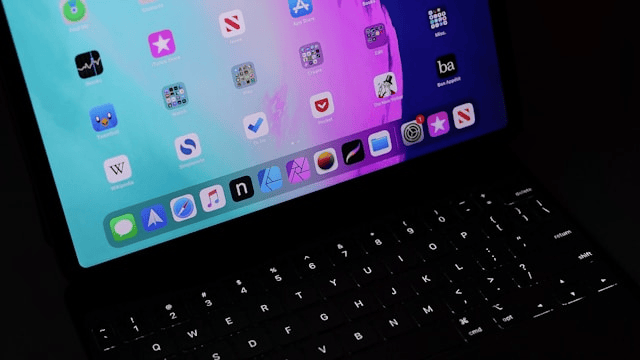
The iPad has become more than just a device for browsing or entertainment, it’s now a powerful tool for work, study, and creativity. Whether you’re writing essays, drafting emails, or chatting with friends, the keyboard plays a major role in your iPad experience. The good news is that you can personalize it to make typing faster, easier, and more enjoyable. Learning how to customize iPad keyboard settings can help you improve efficiency, add personal flair, and unlock features you might not even know existed.
In this guide, we’ll walk through all the ways you can adjust your iPad keyboard, from changing layouts and shortcuts to installing custom keyboards and troubleshooting common issues.
Accessing iPad Keyboard Settings
The first step in customizing your keyboard is knowing where to find the right settings.
-
Open the Settings app.
-
Tap on General.
-
Select Keyboard.
Here, you’ll find options to enable or disable features like autocorrect, predictive text, smart punctuation, and emoji suggestions. Exploring these iPad keyboard settings will give you a solid foundation before diving into more advanced customization.
Changing Keyboard Layout and Language
One of the simplest but most useful ways to customize your iPad keyboard is by adjusting its layout and language.
-
To add a new language, go to Settings > General > Keyboard > Keyboards > Add New Keyboard.
-
Choose from dozens of available languages.
-
Once added, you can switch between languages by tapping the globe icon on the keyboard.
You can also change layouts such as QWERTY, AZERTY, or QWERTZ. For multilingual users, this makes typing much smoother and ensures that autocorrect suggestions match the language you’re using.
Using Text Replacement and Shortcuts
If you type certain phrases often, text replacement can save you a lot of time.
-
Go to Settings > General > Keyboard > Text Replacement.
-
Tap the + icon to create a shortcut.
-
Enter a phrase and its corresponding shortcut (e.g., typing “omw” automatically changes to “On my way!”).
This feature is especially handy for email signatures, addresses, or frequently used replies. These iPad keyboard shortcuts are one of the best tools for boosting productivity.
Custom Keyboards and Third-Party Apps
Apple’s default keyboard is reliable, but you’re not limited to it. You can install custom keyboards from the App Store to add extra features and personalization options.
Popular third-party keyboards include:
-
Gboard by Google – swipe typing, integrated search, GIFs, and translation.
-
SwiftKey – predictive text, multilingual typing, and customizable themes.
-
Fleksy – fun extensions, emoji suggestions, and unique layouts.
To enable a third-party keyboard:
-
Download it from the App Store.
-
Go to Settings > General > Keyboard > Keyboards > Add New Keyboard.
-
Select the app and give it necessary permissions.
These custom keyboards on iPad provide flexibility beyond the default options, allowing you to choose themes, colors, and input styles that match your personality.
Enabling Keyboard Themes and Personalization
While iPad doesn’t yet offer built-in themes, you can still personalize your typing experience with dark mode and third-party apps.
-
Dark Mode: Go to Settings > Display & Brightness and enable Dark Mode for a more comfortable typing experience at night.
-
Keyboard Themes: Third-party keyboards like Gboard or SwiftKey allow you to apply colorful themes, backgrounds, and custom designs.
These small tweaks make the iPad keyboard feel more personal and visually appealing.
Advanced Tips for Productivity
For those who use iPad for work or school, customizing the keyboard can make multitasking easier:
-
Split Keyboard: Place your thumbs comfortably by splitting the keyboard into two halves. Tap and hold the keyboard icon, then choose “Split.”
-
Floating Keyboard: Pinch the keyboard with two fingers to shrink it into a smaller, movable version. Perfect for typing with one hand.
-
Keyboard Shortcuts for Apps: If you use an external keyboard, you can set up app-specific shortcuts for quick navigation.
These features make the iPad more versatile and transform it into a true productivity device.
Troubleshooting Common Keyboard Issues
Sometimes, iPad keyboard settings don’t work as expected. Here are a few common problems and solutions:
-
Keyboard not appearing: Restart your iPad or check if an external keyboard is connected.
-
Autocorrect issues: Go to keyboard settings and toggle autocorrect off and on.
-
Predictive text missing: Ensure the feature is enabled under Settings > Keyboard.
-
Keyboard feels slow or laggy: Reset the keyboard dictionary under Settings > General > Reset > Reset Keyboard Dictionary.
These quick fixes will usually resolve most keyboard-related issues.
Conclusion
Knowing how to customize iPad keyboard settings allows you to unlock a more efficient and enjoyable typing experience. From changing layouts and languages to adding text replacements, installing custom keyboards, and using advanced features like split and floating keyboards, there are endless ways to tailor the iPad to your needs.