


Most Android slowdowns come down to three things: too little free storage, too many apps running in the background, and outdated software. Fixing all three usually takes less than 15 minutes and costs nothing.
Start with the basics, restart your phone, free up storage until you’re above 10-20% free, and uninstall anything you haven’t opened in months. If your phone is still sluggish after that, dig into background app restrictions, cached data, and a few hidden settings that most people never touch.
You don’t need a new phone, and in almost every case, you don’t need a factory reset either. Below are 10 fixes, ranked from the fastest wins to the more advanced tweaks, so you can stop as soon as your phone feels fast again.
1. Restart Your Phone (Yes, Really)
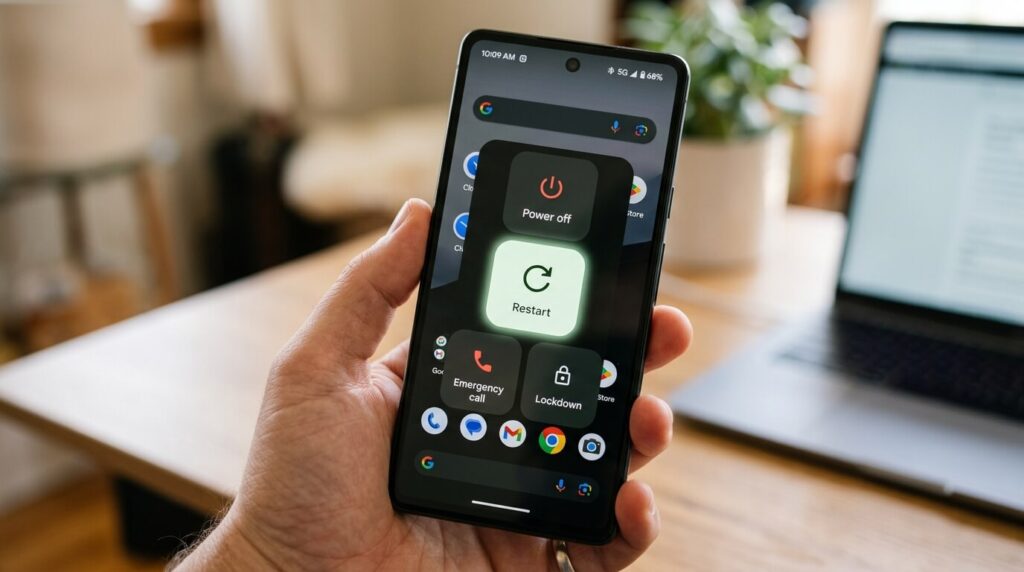
It sounds too simple to matter, but a restart clears out memory that’s been quietly clogged by apps you closed hours or days ago. Android doesn’t always fully release RAM when you swipe an app away, and that buildup adds up over a week of normal use.
Most people only restart their phone when something breaks, but making it a weekly habit prevents the slowdown from building up in the first place.
- Press and hold the power button, then tap Restart (not just “power off”)
- Do this once a week if you rarely turn your phone off
- Restarting also finishes installing any pending background updates
- It’s the single fastest fix on this list and takes about 90 seconds
2. Update Android and Your Apps
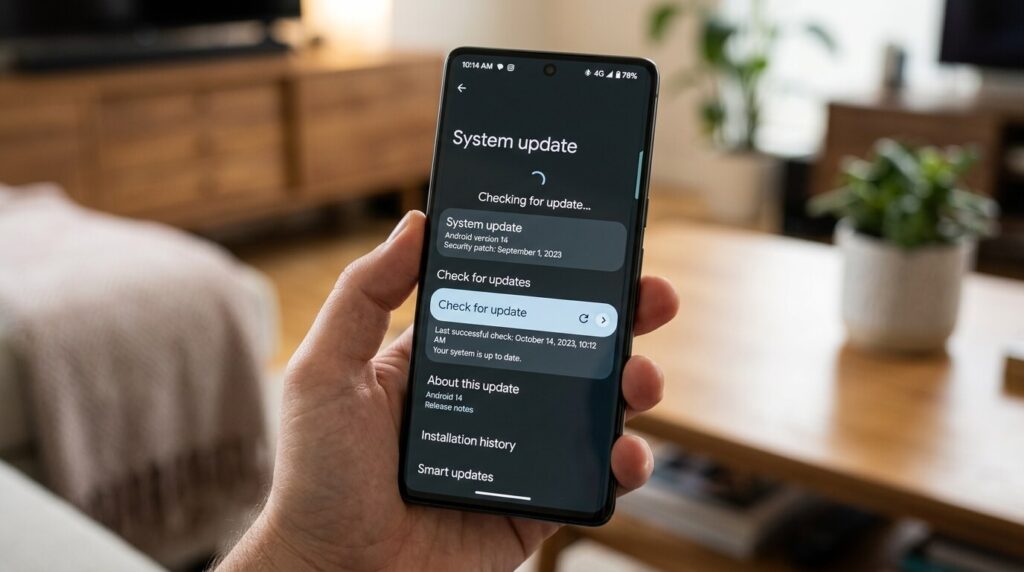
Software updates aren’t just about new features and security patches, they frequently include real performance and memory management improvements. In fact, Google’s Android 17 update, which began rolling out to Pixel phones in June 2026, introduced app memory limits specifically designed to stop individual apps from hogging RAM.
Outdated apps can be just as much of a drag as an outdated operating system, since old versions sometimes run less efficient background processes than current ones.
- Go to Settings > System > Software Update to check for a pending Android update
- Open the Play Store, tap your profile icon, then “Manage apps & device” to update everything at once
- Android 17’s new memory limits are rolling out brand by brand through the rest of 2026
- Set apps to auto-update over Wi-Fi only, so this stays a background habit, not a chore
3. Free Up Storage Space
Low storage is the single biggest cause of Android slowdowns, and it’s not close. Once your internal storage drops below roughly 10%, Android loses the breathing room it needs to manage temporary files, app caches, and memory swapping.
The fix isn’t complicated, but it does require actually looking at what’s eating your space, which most people never do.
- Go to Settings > Storage to see exactly what’s taking up room
- Clear out the Downloads folder, old PDFs, screenshots, and duplicate photos pile up fast
- Move photos and videos to Google Photos or another cloud service, then delete the local copies
- Aim to keep at least 10-20% of your total storage free at all times
4. Uninstall Apps You Don’t Use
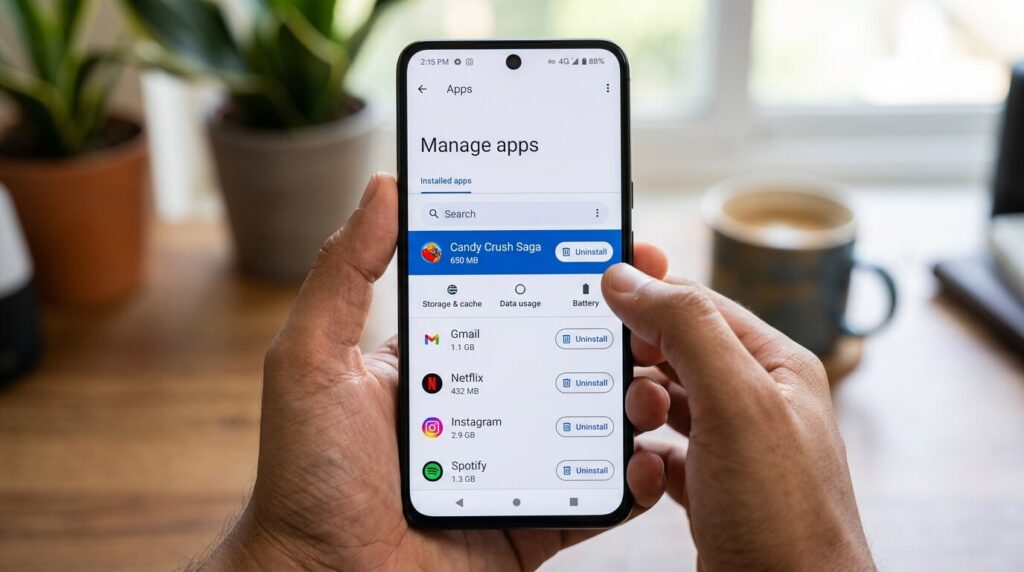
Every app on your phone is a potential background process, even ones you haven’t opened in months. Many apps keep syncing, checking for notifications, or refreshing data quietly in the background long after you’ve forgotten they exist.
A quick pass through your app drawer is one of the highest-value five minutes you can spend on your phone.
- Long-press any app icon and select Uninstall, or use the Play Store’s app manager
- Target games you tried once, duplicate apps that do the same thing, and old shopping or delivery apps
- Removing apps also frees up storage, which compounds with fix #3 above
- If you’re not sure whether you still need an app, check when you last opened it in your app manager
5. Clear Cached Data for Heavy Apps
Cache is meant to help, it’s temporary data apps store so they can load faster next time. The problem is that over months of use, cache can balloon into gigabytes of clutter, especially for browsers, social media apps, and messaging apps.
Clearing cache is different from clearing an app’s data, it won’t log you out or delete your settings, it just removes the temporary files.
- Go to Settings > Apps, pick a heavy app like your browser or a social media app, then tap Storage
- Tap “Clear Cache,” not “Clear Data” (clearing data resets the app entirely)
- Focus on the apps you use most, that’s where cache builds up fastest
- Repeat this every month or two for your top 3-4 most-used apps
6. Restrict Background Activity for Rarely-Used Apps
Some apps you want to keep, but don’t need running constantly in the background. Android lets you restrict exactly how much freedom an app has to wake itself up, sync data, or send notifications when you’re not using it.
This is different from uninstalling, it’s a middle ground for apps you use occasionally but don’t want draining resources the rest of the time.
- Go to Settings > Apps, select an app, then look for Battery or Background Usage
- Set rarely-used apps to “Restricted” so they can’t run freely in the background
- Leave essential apps like messaging and email on their default setting
- This also noticeably improves battery life, not just speed
7. Turn Off Live Wallpapers and Limit Widgets
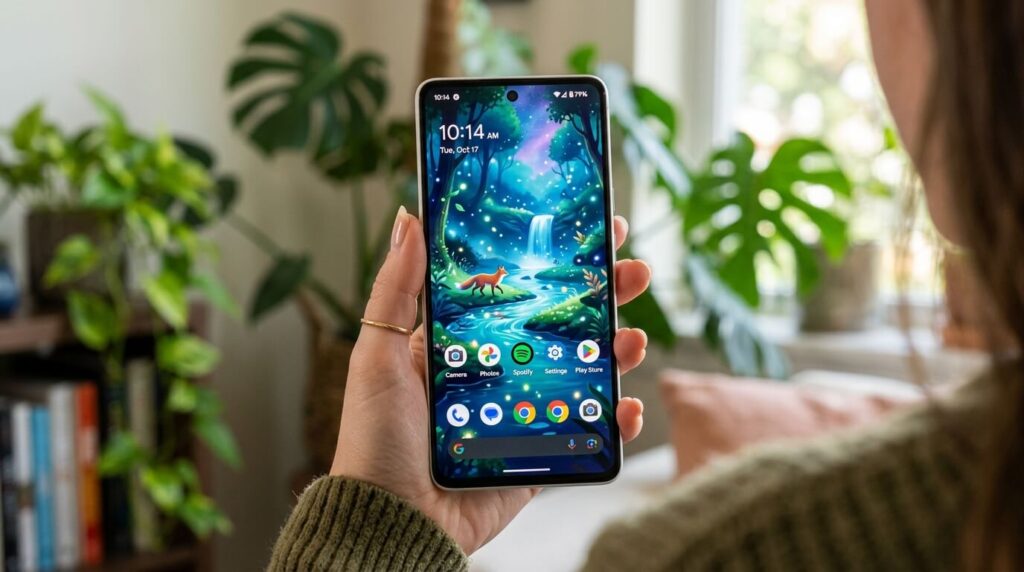
Live wallpapers look nice, but they’re constantly rendering motion in the background, which uses processing power every second your screen is on. Widgets are similar, each one refreshes on its own schedule, and a home screen packed with them adds up.
Neither of these is a huge drain individually, but stacked together across multiple home screens, they’re a real and avoidable tax on your phone’s responsiveness.
- Long-press your home screen, select Wallpaper, and switch to a static image
- Remove widgets you don’t check daily, weather, calendar, and news widgets are common offenders
- Reduce the number of home screen pages if you have more than two or three
- A simpler home screen also just makes things faster to find
8. Reduce Animation Speed in Developer Options
This is the fix almost nobody knows about, because it’s hidden behind a setting most people never activate. Android has built-in animation scales that control how long transitions, pop-ups, and app-switching take and turning them down makes your phone feel dramatically faster, even though it isn’t actually processing anything differently.
Getting here takes an extra step, but it’s genuinely one of the most noticeable free upgrades available on any Android phone.
- Go to Settings > About Phone, then tap “Build Number” seven times until developer mode unlocks
- Open Settings > System > Developer Options and find Window, Transition, and Animator animation scale
- Set all three to 0.5x for a noticeably snappier feel, or off entirely for maximum speed
- This doesn’t improve real performance, but it removes the delay you feel between actions
9. Review App Permissions
Apps that constantly track your location, listen through the microphone, or run camera access checks in the background aren’t just a privacy concern, they’re actively consuming processing power and battery to do it. Trimming unnecessary permissions reduces that background workload directly.
This is a five-minute audit that pays off in both speed and privacy at the same time.
- Go to Settings > Privacy > Permission Manager
- Start with Location, it’s consistently one of the biggest background resource drains
- Check Microphone and Camera access next, and revoke anything that seems unnecessary
- Set permissions to “Only while using the app” instead of “Allow all the time” wherever possible
10. Know When a Factory Reset Is Actually Worth It
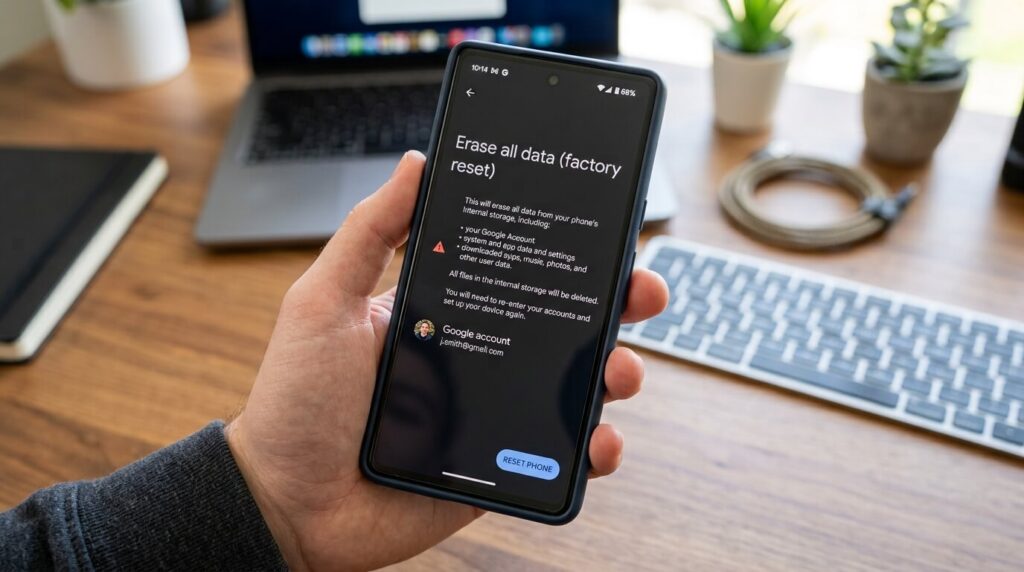
If you’ve worked through the previous nine fixes and your phone is still crawling, a factory reset is the legitimate last resort, not the first thing to try. It wipes out accumulated software issues, bloatware, and any lingering malware that simpler fixes can’t touch.
This should be rare. Most phones never actually need this step if the earlier fixes are done regularly.
- Back up photos, messages, and files to the cloud before doing anything
- Go to Settings > System > Reset Options > Erase All Data
- Reserve this for phones that stay slow after storage, background apps, and cache have all been addressed
- If a reset doesn’t fix it, the slowdown is likely a hardware issue, not software
Real-World Examples
Here’s what these fixes look like when someone actually applies them, not just reads about them.
A commuter with a three-year-old phone was reduced to fumbling through 4-second app launches every morning. After uninstalling 22 unused apps and clearing cache on their two most-used apps, launch times dropped to nearly instant, all in about ten minutes before their train arrived. A parent whose phone was constantly running low on storage moved two years of photos to Google Photos, freeing up 40GB and immediately noticing faster camera app launches and smoother scrolling. A gamer who wanted every bit of speed for competitive mobile games turned on Developer Options purely for the animation scale trick, cutting the felt delay between screen taps and in-game actions.
- Daily commuter: app uninstalls + cache clearing = faster morning routine
- Parent with a photo-heavy phone: cloud offload = storage headroom + smoother scrolling
- Mobile gamer: animation scale tweak = lower perceived input delay
- Anyone on a 3+ year old device: restart habit + storage management = noticeably longer usable lifespan
Frequently Asked Questions
Why does my Android phone get slower over time? Storage fills up, apps accumulate in the background, cache builds up, and software falls out of date. All four combine to reduce the breathing room your phone needs to run smoothly.
Does restarting my phone actually help? Yes. Restarting clears out memory that apps don’t always fully release on their own, and it completes any pending background updates that might be waiting to install.
How much storage should I keep free on Android? Aim for at least 10-20% of your total storage free. Performance tends to drop sharply once you go below that threshold, since Android needs room to manage temporary files and memory.
Do phone cleaner or booster apps actually work? Generally, no. Most cleaner apps provide minimal real benefit and often add their own background processes, ads, and bloat, which can make your phone slower rather than faster.
What’s the difference between clearing cache and clearing data? Clearing cache removes temporary files an app uses to load faster, without affecting your login or settings. Clearing data resets the app entirely, including your saved logins and preferences.
Will a factory reset make my old phone feel new again? It can help significantly if software buildup is the cause, but it won’t fix hardware limitations like an aging battery or a slower processor compared to newer phones.
Is it safe to use Developer Options on Android? Yes, Developer Options are a standard part of Android meant for testing and customization. Adjusting animation scales is safe and reversible, and you can turn Developer Options off again at any time.
How often should I do these speed-up steps? A quick pass, restart, check storage, clear cache on your top apps, once a month is enough for most people. A full uninstall and permissions review every few months keeps things running smoothly long-term.
The Bottom Line
A slow Android phone is almost always a software problem, not a sign that you need to buy a new one. Working through these 10 fixes in order, starting with the fast wins like restarting and freeing up storage, then moving into background app management and hidden settings, solves the vast majority of real-world slowdowns.
Do the first five fixes today, and you’ll likely notice a difference within minutes. Keep the habit going once a month, and your phone should stay fast for years longer than it would otherwise.