
TCL has become one of the top five global TV brands by shipment volume, largely due to its ability to offer premium features at mid-range prices. As of 2025–2026, TCL smart TVs commonly run Roku TV, Google TV, or Android TV, depending on the model and region.
While these platforms are generally stable, TCL TVs like all smart devices can develop performance issues over time due to software updates, app conflicts, cached data buildup, or network changes. Resetting your TCL Smart TV can often resolve these issues, but it’s important to understand when a reset is necessary, what it actually does, and which type of reset is best.
This guide explains how and why to reset your TCL Smart TV in 2026, along with smarter alternatives to try first.
When Should You Reset a TCL Smart TV?
A factory reset is not always the first or best solution. Based on common TCL support cases and user-reported issues in 2024–2025, a reset is typically justified when:
-
The TV becomes noticeably slow or unresponsive
-
Apps repeatedly crash, freeze, or fail to launch
-
Wi-Fi or Ethernet connections won’t stay connected
-
The TV turns on but displays no picture
-
Audio and video become out of sync
-
You’re selling or giving away the TV and need to erase data
-
System updates fail or loop endlessly
Expert insight:
In most cases, these problems are caused by corrupted app data or system-level conflicts, not hardware failure. A reset clears these conflicts but also removes all user data.
What a Factory Reset Actually Deletes (And Why That Matters)
Before resetting, understand what will be erased:
-
Google or Roku account sign-ins
-
Wi-Fi and wired network settings
-
Installed apps and app data
-
Personalized recommendations
-
System preferences and parental controls
What it does NOT remove:
Firmware updates your TV stays on the latest system version.
This distinction is important because many users mistakenly believe a reset downgrades software. As of 2026, TCL firmware is cloud-verified and retained.
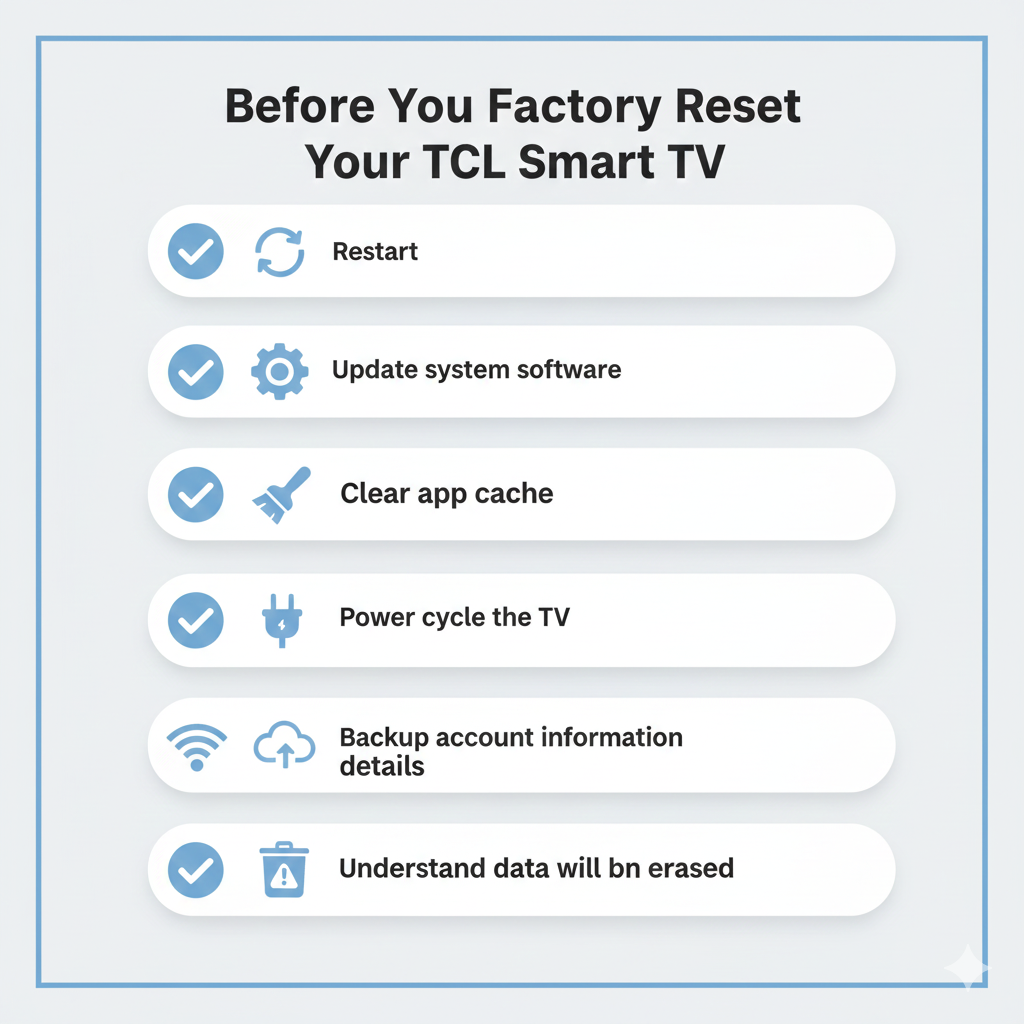
Things to Try Before Resetting Your TCL Smart TV
Restart the TV (Soft Reset)
A soft restart clears temporary memory without deleting data.
How it works:
It flushes short-term system processes that can slow performance.
Steps (Roku & Google TV):
-
Home → Settings
-
System → Power
-
System Restart → OK
This resolves minor freezes and UI lag in most cases.
Update Your TCL Smart TV Software (Highly Recommended)
According to TCL release notes (2024–2025), many bugs are fixed through incremental OTA updates, especially for Wi-Fi and app compatibility.
Steps:
-
Home → Settings
-
System → System Update
-
Select Check Now
-
Install update if available
Do not unplug the TV during the update. The TV will restart automatically.
Clear App Cache (Google TV / Android TV Models)
Over time, cached data can grow excessively and degrade performance.
Why this works:
Clearing cache removes outdated scripts and temporary files without deleting the app.
Steps:
-
Settings → Apps & Notifications
-
See all apps
-
Select an app → Storage & Cache
-
Clear Cache (not Clear Storage)
This is especially effective for YouTube, Netflix, Prime Video, and browser apps.
Power Cycle the TV (Hard Restart)
Power cycling resets hardware-level states.
Steps:
-
Turn off the TV
-
Unplug from power outlet
-
Wait 30–40 seconds
-
Plug back in and power on
This resolves HDMI handshake issues, audio delays, and black screen problems.
Factory Reset: How to Reset a TCL Smart TV (2026 Method)
Only proceed if the above steps fail.
Standard Reset Using the Remote
-
Press Home on the remote
-
Go to Settings
-
Select System
-
Choose Advanced system settings
-
Select Factory reset
-
Choose Factory reset everything
-
Confirm
The TV will reboot and return to out-of-box state.
Alternative: Reset Without Remote (When the Remote Doesn’t Work)
Many TCL models include a physical reset button:
-
Locate the reset pinhole (usually on the back or bottom)
-
Press and hold the button while plugging in the TV
-
Release after the TCL logo appears
This method is useful if the TV is frozen or unresponsive.
TCL Smart TV Setup After Factory Reset
Once reset, you’ll need to complete Guided Setup again.
Initial Setup Steps:
-
Connect power and turn on TV
-
Select language and region
-
Choose Home Use (recommended for energy settings)
-
Connect to the Internet (Wi-Fi or Ethernet)
-
Allow initial system update to install
-
Restart when prompted
-
Activate TV using the on-screen code
-
Sign in to Roku or Google account
After setup, apps and recommendations will rebuild gradually based on usage.
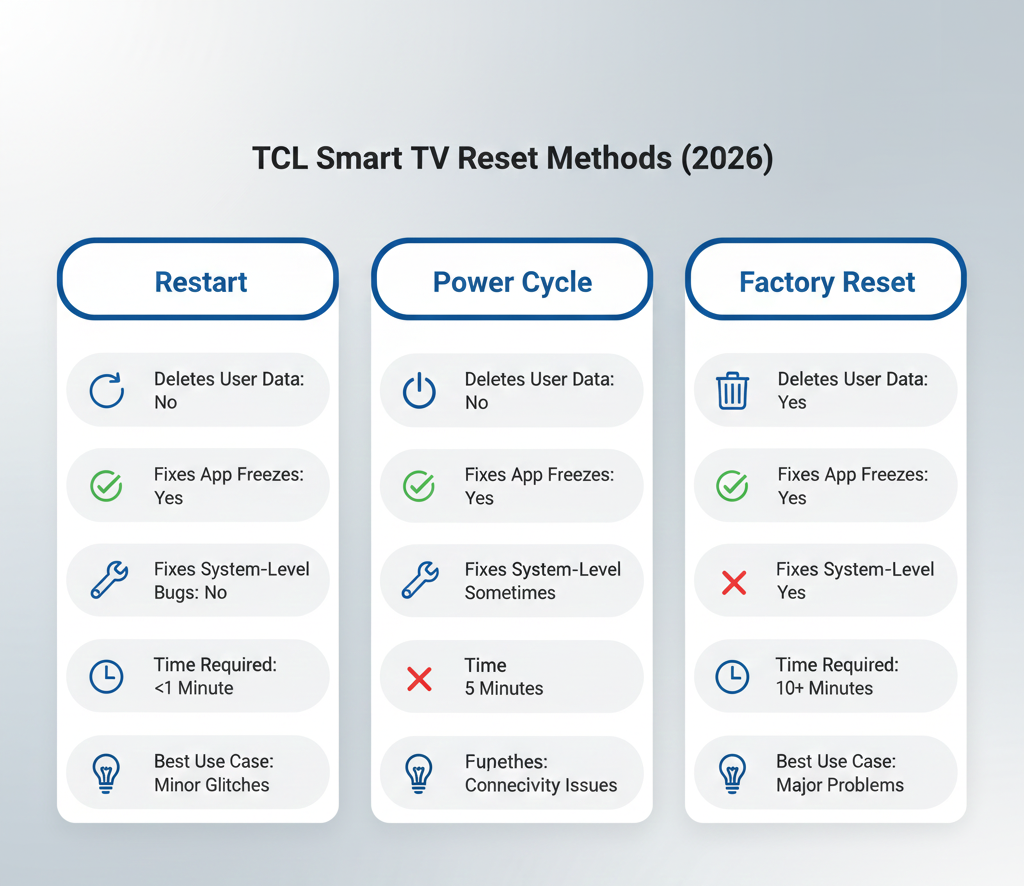
Reset vs Restart vs Power Cycle: What’s the Difference?
Action |
Deletes Data |
Fixes Major Bugs |
Best Use Case |
|---|---|---|---|
Restart |
❌ No |
⚠️ Limited |
App freezes |
Power Cycle |
❌ No |
✅ Moderate |
Black screen, HDMI issues |
Factory Reset |
✅ Yes |
✅✅ High |
Persistent system failures |
Common Questions People Ask (Answered)
Will resetting my TCL TV fix Wi-Fi issues?
Yes, if the issue is software-related. Hardware Wi-Fi failures require service.
How often should I reset my TCL Smart TV?
Only when necessary. Frequent resets are not recommended.
Does resetting improve performance?
Yes, especially if the TV has accumulated corrupted app data over months or years.
Will a reset remove firmware updates?
No. Your TV stays updated to the latest version.
Final Thoughts (2026 Perspective)
Resetting a TCL Smart TV is a powerful but irreversible solution. In most cases, performance issues can be fixed with updates, cache clearing, or power cycling. A factory reset should be used only when system-level problems persist.
If your TCL TV still malfunctions after a reset, the issue is likely hardware-related, and contacting TCL support or an authorized service center is the next step.