

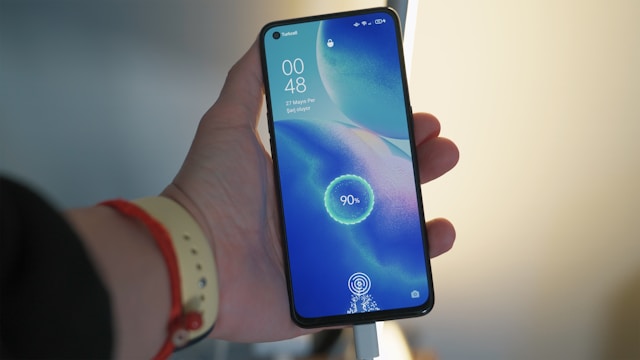
Few things are more frustrating than a phone that won’t charge or turn on. Whether your device is completely unresponsive or simply not holding a charge, there are several troubleshooting steps you can take before seeking professional help. This guide will walk you through common causes and solutions to fix a phone that won’t power up.
Check the Basics
Before diving into more complex fixes, start with these simple checks:
- Press the power button correctly – Some phones require holding the power button for a few seconds. If your phone has a dedicated restart or side button, try using that.
- Ensure the battery isn’t completely drained – If your phone’s battery is fully depleted, plug it into a charger and wait at least 10–15 minutes before attempting to turn it on.
- Test different charging equipment – A faulty charger, cable, or power outlet could be the issue. Try using a different USB cable, charging adapter, and power source.
Fixing a Phone That Won’t Charge
If your phone isn’t charging, try these troubleshooting steps:
1. Inspect and Clean the Charging Port
Dust, lint, and debris can accumulate inside the charging port, blocking the connection. To clean it:
- Turn off the phone and use a flashlight to inspect the port.
- Gently remove debris using a toothpick or a can of compressed air.
- Try charging again with a different cable.
2. Check for Physical Damage
- Examine the charging cable and adapter for signs of wear or fraying.
- Check if the charging port is loose or bent—this could indicate internal damage.
- Try wireless charging if your phone supports it.
3. Perform a Soft Reset
A software glitch can sometimes prevent the phone from recognizing a charger. To perform a soft reset:
- For iPhones: Press and hold the volume up + side button until you see the Apple logo.
- For Android devices: Hold down the power button + volume down until the phone restarts.
Fixing a Phone That Won’t Turn On
If your phone remains unresponsive, try the following solutions:
1. Force Restart the Device
- For iPhones: Press and release the volume up button, then the volume down button, then press and hold the power button until the Apple logo appears.
- For Android: Hold the power button for at least 10–20 seconds to force a reboot.
2. Charge the Phone for a Longer Duration
If your phone’s battery is fully drained, it may take longer to power up. Leave it connected to a working charger for at least 30 minutes before attempting to turn it on.
3. Boot Into Recovery Mode
If the phone won’t turn on due to a system issue, recovery mode can help:
- For iPhones: Connect to a computer, open iTunes (or Finder on macOS Catalina+), and enter recovery mode by pressing the appropriate button combination.
- For Android: Hold the power + volume up buttons until the device boots into recovery mode, then follow on-screen instructions to restart or reset the phone.
4. Check for Overheating Issues
If your phone is too hot, it may automatically shut down as a safety measure. Let it cool down before attempting to turn it on again.
Software-Related Fixes
If your phone turns on but is still experiencing issues, consider these fixes:
- Update or reinstall the operating system – If your phone is stuck on the boot screen, connect it to a PC or Mac and try updating or reinstalling the OS.
- Remove recently installed apps – Uninstall any apps that may be causing conflicts.
- Factory reset as a last resort – If nothing else works, you can perform a factory reset. Keep in mind that this will erase all data, so back up your phone first if possible.
When to Seek Professional Help
If none of the above steps work, it may be time to visit a repair shop. Seek professional assistance if:
- The charging port or internal components are physically damaged.
- The phone has been exposed to water or extreme temperatures.
- The battery is swollen or won’t hold a charge even after replacing cables and adapters.
Conclusion
A phone that won’t charge or turn on can often be fixed with simple troubleshooting. By checking the basics, cleaning the charging port, performing a force restart, and using recovery mode, you can solve most issues without professional repair. However, if the problem persists, seeking expert assistance is the best course of action.